Smokes your problems, coughs fresh air.

Month: January 2010 (Page 1 of 3)

XSel, for command-line operations on X selections

Since I first learned that Windowmaker installs two command-line tools, wxcopy and wxpaste, to play around with X selections, I have wanted to be able to make and use X selections from my Bash shell. wxcopy and wxpaste never did what I expected them to do, so I gave up until recently I learned about all the different X selections.

By default, wxcopy and wxpaste operate on the CUT_BUFFER[n] selections. These are deprecated. That’s why I could never make it work, because modern applications use only CLIPBOARD and SELECTION. So, wxcopy is pretty useless (unless its used to copy something to paste with wxpaste). With this knowledge wxcopy does seem useful thanks to its -selection [selection-name] flag, but this doesn’t seem to work; I only get the contents of CUT_BUFFER. This is not how the feature is advertised:

-selection [selection-name]
The data will be copied from the named selection. If cutting from the selection fails, the cutbuffer will be used. The default value for the selection name is PRIMARY.

Enter XSel

Fortunately, there’s XSel by Conrad Parker, a program which made him passionately hate the ICCCM.

XSel does exactly what it advertises. I’m actually surprised that I never heard of it before. It’s available in Gentoo, Debian and Ubuntu, so it’s a breeze to install.

Among its features are: --append, --follow, --clear, --delete (very weird, but logical if you understand X IPC), --primary, --secondary, --clipboard, --keep, and --exchange. Read the man page for more. It’s an excellent read.

One of the places where I’m going to use this tool is when copy-pasting to and from VIM. I really like how this compares to using :insert or :r!cat</dev/tty and then using the pointer to paste (or (Shift+)Insert with my custom XTerm config). Now, to paste something in VIM, I can simply type:

:r!xsel

I use the following to copy any amount of text from VIM. This works much better than fooling around with the mouse:

:'>,'> !tee >(xsel -i)

The '>,'> range is entered automatically if you press : while in visual (selection) mode. You could enter any range there, or even % to select the whole file. To copy to the CLIPBOARD instead of the PRIMARY, use xsel -i -b in the above example.

If someone know of a way to make VIM pipe something to a program without replacing the given range with that program’s output, I could simplify this…
Installing Xen with Lenny guest on a Debian machine

This is supersceeded by my install on Debian Squeeze). On Lenny, everything is just too outdated.

This will explain how to install the paravirtualization software Xen on Debian. It is more involved than KVM, but more elegant if you can setup up a dedicated machine to run virtual machines (in fact, KVM on Debian seems quite clunky). I use this Debian wiki page as base.

First some terminology. On Xen, everything runs virtualised, including what in KVM would be called the “Host OS”. This is because every OS instance shares some kernel space. Xen has a primary virtual machine with which you configure the other virtual machines. This is called Domain-0, or Dom0. The guests are DomU’s.

Begin by installing xen-linux-system-2.6.26-2-xen-686 and xen-tools. It will install all necessary dependencies:

aptitude -P install xen-hypervisor-3.2-1-i386 linux-image-2.6-xen-686 xen-tools

(The wiki page suggests to install linux-image-2.6.26-2-xen-686, but that confuses me. See my forum post. I will update this blogpost if my insights change).

A new kernel is installed and is configured in Grub as primary kernel. (As a sidenote, I wonder what will happen if the standard kernel is upgraded at some point in the future; will that be installed as primary again? Should the standard kernel be uninstalled?)

Before you reboot, add “xenblktap” to /etc/modules. This module is needed to be able to use tap:xxx (like tap:aio) storage back-ends. These are preferred over “file:”, especially when using NFS to store images (although that link also states that ENBD is preferred over NFS. (I was having problems with tap:aio and then I discovered the module problem. It still doesn’t work for me, but the problem lies elsewhere now.)

If you boot into the new kernel you can do “xm list” and you will see that your Domain-0 is active.

You want to setup an ethernet bridge configuration next, because that way, you can plug your virtual machines into your existing ethernet network. You can do this by configuring this in the config file /etc/xend-config.xsp (The network-script option is already defined, so all you have to do is change it):

(network-script network-bridge)

Configuring “vnc-listen” might also be a good idea (although not really needed for linux, since you’ll be using the xen console). Setting it to localhost and then tunnling through SSH would be the safest, obviously.

Now it’s time to add DomU’s. Because the guests need to have DomU support, the OS cannot be installed with the normal installer (although I’m not sure this is still the case for Lenny, because the Wiki says: “In Lenny the distinction between the Xen and non-Xen flavours of the kernel (with respect to domU support) is no longer present.”).

First edit /etc/xen-tools/xen-tools.conf to set some good defaults. You can remove the noatime mount options for ext2 and ext3, for example. I can also set the default mirror to “http://ftp.nl.debian.org/debian/”.

xen-create-image --hostname=virtualnode --size=2Gb --dist=lenny --memory=256M --dhcp --dir /root/xen-images/ --swap 256Mb

You have to mount the image to make some corrections. In my case, the image was still mounted somewhere in /tmp. I assume this is bug. Begin by editing /etc/inittab. Comment out the existing “1:…” tty and add the line :

1:2345:respawn:/sbin/getty 38400 hvc0

to /etc/inittab, otherwise your console won’t work.

Start the virtual machine and attach a console (the -c option) like this:

xm create -c virtualnode.cfg

One of the first things you want to install is udev, because you can’t even ssh to the box without it.

The resulting Debian installation is very bare; it doesn’t even have a mail infrastructure.

On the Dom0, you can mkdir /etc/xen/auto and symlink the config file for this virtual host there to have it auto started by the xendomains bootscript.

Copy-pasting to and from XTerms

By default, XTerms only supports the PRIMARY selection for copy and paste. The PRIMARY selection is the one that is used by most ‘modern’ X application when you select text. This text can then usually be pasted by clicking the middle/second mouse button. Because this selection is set whenever you select, it’s easily overwritten, often accidentally. That’s why most newer X apps offer a parallel copy/paste mechanism where the selection is only explicitly set by choosing “Cut” or “Copy” from the application’s “Edit” menu or from its context menu (or with the Control-X/C/V keyboard shortcuts). In X, this selection is called CLIPBOARD, just like in Windows where it’s the only selection.

X also has these selections called Cut Buffers, but these are considered obsolete. Maybe that’s just too bad, because they appear to be the only selections with persistence; the other selections, PRIMARY and CLIPBOARD, disappear when the application is quit. Apparently, this is a feature, because it enables content negotiation.

Anyway, XTerm can be configured to do anything and I want it to be CLIPBOARD aware, for two reasons: one is that I often copy things from applications that can only set the CLIPBOARD selection; another is that I want to be able to really copy something from the XTerm, without losing it as soon as I select something else (especially if that something else is something I want to replace with the selection).

So, I added the following to my VT100.Translations #override in .Xdefaults.XTerm:

XTerm*VT100.Translations: #override \
    ShiftInsert: insert-selection(CLIPBOARD) \n\
    Insert: insert-selection(PRIMARY) \n\
    Shift: insert-selection(CLIPBOARD) \n\
    Shift: select-start() \n\
    Shift: select-extend() \n\
    Shift: select-end(CLIPBOARD)

What this does:

  • This gives me an XTerm that pastes the content of the CLIPBOARD when I hold down Shift during my two-finger tab (I’m using a touchpad, so that works as a Btn2).
  • Because I don’t like moving my hands, I can do the same by pressing Shift+Insert.
  • I can use my Insert key without Shift to paste the PRIMARY selection.
  • To copy something to the clipboard, I hold down the Shift key while making the selection.

That’s how you can make use of the CLIPBOARD from your XTerm.

Sources

If you want to learn more.

Xen console

To get the console of your Linux guests on a Xen machine, type “xm console “. Then to exit, press “ctrl-]”. When in screen, do “ctrl-a, a, ctrl-]”.

Configuring a static IP address on Debian

This is a simple netconfig for a static IP address on a Debian machine. In /etc/network/interfaces, replace your eth0 (or whatever) with this:

auto eth0
iface eth0 inet static
    address 192.168.1.65    
    netmask 255.255.255.0
    gateway 192.168.1.251

Edit: I removed the network and broadcast statements because they are superfluous.

Debian volatile: keep fast moving packages working on Debian stable

The concept of Debian stable is kind of nice, since you don’t have to be affraid of upgrade breakages all the time, but it can also be annoying, because things like spamfilters and virusscanners are fast-moving and you often end up with old versions of those. That is why the Debian volatile project exists.

On new installs, the packages sources will already be in /etc/apt/sources.list, but the sources.list doesn’t seem to be upgraded on old systems, so you may need to add them by hand. These are the sources:

deb http://volatile.debian.org/debian-volatile lenny/volatile main
deb-src http://volatile.debian.org/debian-volatile lenny/volatile main 

It’s speaks for itself that you have to change lenny to whatever the release will be…

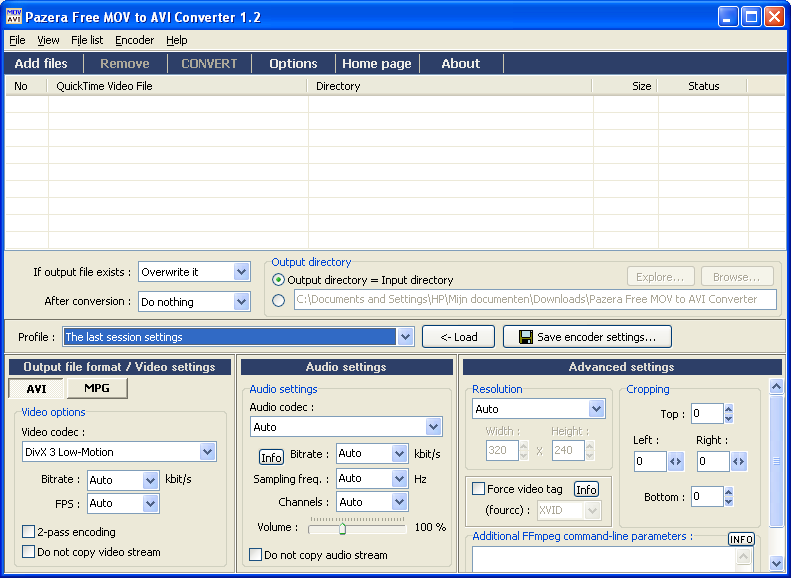
Pazera Free MOV to AVI Converter 1.2

Ewald wants to be able to make video/photo montages of his life at la Boucoule. While there last month, I helped him along with Windows Movie Maker (WMM) a bit. WMM doesn’t like Quicktime video’s (as outputted by his camera), so I found a simple Windows program that wraps around ffmpeg to convert these movies to AVI format: Pazera Free MOV to AVI Converter 1.2.

Pazera Free MOV to AVI Converter 1.2

To make the generated AVI work in WMM, a few settings need to be changed away from the default. For this purpose I added a custom profile. Here’s the INI file, “00 - Geschikt voor Windows Movie Maker.ini”:

[MAIN]
AppName=Pazera Free MOV to AVI Converter
AppVer=1.2
OutputFormat=AVI
[AVI]
VideoCodec=1
VideoBitrate=Auto
VideoFPS=Auto
Video2Pass=0
DoNotCopyVideo=0
[MPG]
VideoFormat=0
MPEGVersion=0
VideoBitrate=Auto
VideoFPS=Auto
Video2Pass=0
DoNotCopyVideo=0
[AUDIO]
AudioCodec=0
AudioBitrate=Auto
AudioSampling=Auto
AudioChannels=0
DoNotCopyAudio=0
Volume=100
[ADVANCED]
Resolution=0
ResWidth=320
ResHeight=240
ForceVideoTag=0
VideoTag=XVID
CropTop=0
CropBottom=0
CropLeft=0
CropRight=0
AdditionalParams=

Now, Ewald will only need to select the right profile if he wants to prepare his Quicktime movies for editing with Windows Movie Maker:

Profile selection in Pazera MOV to AVI Converter

AJAX comment preview for WordPress

Yesterday night, after mucking around with my Subversion repo for this blog for way too long, I finally stopped annoying the designer of my new theme and uploaded it, one and a half year after the last major redesign. Anyway, while implementing the new design for the comment list , I decided it was time to have comment previews.

At some time, I had already installed (but not activated) the Live Comment Preview plugin, but that’s client-side only. I removed it because I want the comment to show as it would after being piped through all the hooks and filters that comments normally get piped through. Enter the AJAX Comment Preview plugin:

Other preview plugins don’t know what sort of changes WordPress will make to a visitor’s comment, but this plugin uses AJAX and other buzzwords to send each previewed comment through WordPress’ inner voodoo.

The result? With the click of a button, your site’s visitors can preview their comments exactly as they will appear when they submit them for realies.

You just gotta love their phrasing. 🙂 Enjoy the new preview feature.

First steps with Subversion’s new merge tracking

A while ago we succeeded in upgrading the Debian server where I keep many of my SVN repositories. (The server was running on “testing”, but we hadn’t dared to upgrade it for a long time until it came time to make it “stable” again with Lenny.) On of the upgraded packages in Lenny is Subversion, now at 1.5.1, which means that I can finally start using subversions new merge tracking features.

To be able to use merge tracking for my existing repositories, I first have to upgrade these. From the svn 1.5 release notes:

The Subversion 1.5 server works with 1.4 and older repositories, and it will not upgrade such repositories to 1.5 unless specifically requested to via the svnadmin upgrade command. This means that some of the new 1.5 features will not become available simply by upgrading your server: you will also have to upgrade your repositories. (We decided not to auto-upgrade repositories because we didn’t want 1.5 to silently make repositories unusable by 1.4 — that step should be a conscious decision on the part of the repository admin.)

The only other machine I’m using these repos from is my laptop, which, running Gentoo, is already at Subversion 1.6.2. So, how do I upgrade?

First, I made a backup of all our SVN repos using a script that Halfgaar made to run from cron. After running that script, I initialized the upgrade procedure:

/var/svn
svnadmin upgrade blog.bigsmoke.us
svn-populate-node-origins-index blog.bigsmoke.us

The last command is unimportant, but may speed up the next few operations. The release notes again:

After running svnadmin upgrade, you may wish to also run the svn-populate-node-origins-index program on the repository. Subversion 1.5 maintains a node-origins index for each repository, and builds the index lazily as the information is needed. But for old repositories with lots of revisions, it’s better to create the index in one step, using the aforementioned tool, than to have live queries be slower until the index has built itself. See issue #3024 for details.

With my data safe and the repo upgraded, it’s time to actually test the new merge tracking features:

~/blog.bigsmoke.us # Enter working copy (on the same server)
 
# I'm now in the lichtgekruid branch.
svn switch file:///var/svn/blog.bigsmoke.us/trunk
svn add wp-content/plugins/openid
svn ci -m "I was convinced this was a change which didn't belong to my feature branch" wp-content/plugins/openid
 
svn switch file:///var/svn/blog.bigsmoke.us/branches/lichtgekruid
svn merge file:///var/svn/blog.bigsmoke.us/trunk
# The last command was a real kicker, not having to find and specify the correct range of revision numbers.
 
svn ci -m "Merged changes from trunk to 'lichtgekruid' branch."
svn switch file:///var/svn/blog.bigsmoke.us/trunk
svn merge file:///var/svn/blog.bigsmoke.us/branches/lichtgekruid
# (Another spontaneous orgasm.)
 
svn ci -m "Merged 'lichtgekruid' branch back into trunk."

Ok, I know I could have simply changed all these projects to use Git, and I like Git. I love its simplicity and flexibility. But, call me old-fashioned; I have an SVN fetish, and so far I find its merge tracking quite convincing.

Besides all the gotchas and pointers in the 1.5 release notes, there’s a lot more info about merge tracking in the SVN redbook.

HP LaserJet 6P under Ubuntu

Because Arnold Pilon is migrating his workplace to Apple, I could get his old PC and peripherals for free. Among its peripherals was an old HP LaserJet 6P, still perfectly working.

My sister didn’t have a printer yet. I was surprised that installing it on her Ubuntu machine was simply a matter of selecting the printer type from a list. I wonder: is this thanks to CUPS? Can I expect this to work in all distros that include CUPS these days?

Anyway, the printer works and the scanner too (of which I forgot to jot down the type). The scanner was supported by Xane without requiring any configuration. When it comes to hardware configuration, open source operating systems often beat those from Redmond.

« Older posts

© 2026 BigSmoke

Theme by Anders NorenUp ↑