Smokes your problems, coughs fresh air.

Month: January 2009

Untangling WordPress’ core files from your local customizations

Since version 2.6, WordPress can be installed in its own directory, separate from your customizations and everthing. Needless to say, this makes upgrading a whole lot easier.

If, in the pre-2.6 days, you wanted to fetch your WordPress updates through SVN, the docs would advice you to do an svn checkout from the official WP SVN repo in your working dir and then do an svn update whenever you want to update WordPress. This works because svn update leaves local modifcations alone. However, this means that you’ll be unable to commit your local changes (configuration, themes, plugins, etc.) if you choose this route.

I used my own subversion repository for my blogs and thus had to upgrade the old fashioned way with each release (although I prefer diff/patch over rm/cp). (I could have used vendor branches, but, clearly, I hadn’t thought about that at the time.) This was pretty much a royal pain in the ass, so I was glad when I could move WordPress into a separate directory with its 2.6 release.

This process consisted of removing everything except wp-content/, wp-config.php, .htaccess. (I also kept robots.txt, favicon.ico and some other personal files.) Then, I added the current WordPress release as an svn:external.

svn propset svn:externals 'wp-factory http://svn.automattic.com/wordpress/tags/2.6.1' .

.htaccess changes

In the WordPress codex, it is then suggested to copy index.php to the root dir and to change it to require wp-factory/wp-blog-header.php instead of ./wp-blog-header.php. I preferred adding some mod_rewrite voodoo of my own to .htaccess, so I did:

<IfModule mod_rewrite.c>
# This way I don't need directory indices
RewriteRule ^$ /wp-factory/index.php [L]
 
# This way WordPress can manage its own block without doing any harm
RewriteRule ^index.php /wp-factory/index.php [L]
 
# Allow easier access to /wp-factory/wp-admin/
RewriteRule ^wp-admin http://%{HTTP_HOST}/wp-factory/wp-admin/ [L,R=301]
</IfModule>

The middle rule performs most of the magic. It redirects all the requests to /index.php to the factory default index.php. This means that I can let WordPress pretend that index.php does live in the root, so I don’t have to modify the rewrite rules that are managed by WordPress itself:

# BEGIN WordPress
<IfModule mod_rewrite.c>
RewriteEngine On
RewriteBase /
RewriteCond %{REQUEST_FILENAME} !-f
RewriteCond %{REQUEST_FILENAME} !-d
RewriteRule . /index.php [L]
</IfModule>
# END WordPress 

wp-config.php changes

In Giving WordPress Its Own Directory in the WordPress Codex, it is suggested to change the “siteurl” and “home” options through the administration panel. In my case they would have to be changed to “http://blog.bigsmoke.us/wp-factory/” and http://blog.bigsmoke.us“. I couldn’t do this because I override these with WP_SITEURL and WP_HOME in my wp-config.php. This is because I configured WordPress to support a development environment separate from the live production environment.

Ignoring the customizations for my development environment, these are the relevant settings in wp-config.php:

define('WP_HOME', 'http://blog.bigsmoke.us');
define('WP_SITEURL', WP_HOME . '/wp-factory');
 
define('WP_CONTENT_DIR', dirname(__FILE__) . '/wp-content');
define('WP_CONTENT_URL', WP_HOME . '/wp-content');

BTW: I really like it how WordPress disables the form controls for siteurl and home when you override these settings in wp-config.php. Kudos for that, devs!

Next time: git

In the end, this is all quite a bit of pain to compensate for what is essentially a version management problem. That’s why, on my newer projects, I’m now using git which makes forking and tracking an upstream repo absolutely trivial. 🙂

A few references

Gentoo update: e2fsprogs blocks e2fsprogs

Yesterday evening, I dropped by at Wiebe‘s with my laptop to start updating our Gentoo systems together. I hadn’t updated this machine since first installing it in spring last year, so I expected quite a few problems. The first blockage that we both had to solve was caused by e2fsprogs.

Wiebe searched the forums for help and found an unfortunate abundance of it. Eventually, I decided to give one of the many contradictory tips a try, although it seemed risky.

$ emerge --unmerge --ask --verbose e2fsprogs

Until you reinstall e2fsprogs, you won’t have any of the ext2/3 utilities such as e2fsck. So, reinstall immediately:

$ emerge --oneshot --ask --verbose e2fsprogs

This will remove libcom_err and libss, and replace them with e2fsprogs-libs, thus solving the blockages.

Wiebe tried an alternative route by first unmerging com_err and ss, and then replacing e2fsprogs. This didn’t work as expected, probably because he had kerberos in his use flags. libkerberos used libcom_err, which broke wget. Scp’ing the distfiles to him didn’t work either (OpenSSH also has kerberos support). Neither did mounting an USB stick with the files. Luckily, Thunderbird still worked, so I emailed the distfiles and the problem was solved. We found it amusing to have to use e-mail while being in the same room. 😉

The reason why this blockage occurred is not entirely clear to me. What I do understand is that com_err and ss were both provided by the e2fsprogs project and are now deprecated in favor of e2fsprogs-libs. Also, it’s clear that the new libraries are binary compatible with the old libraries or his system would have remained unusable, even after merging e2fsprogs-libs.

Before we tackled this problem, I had only updated portage and net-print/foomatic-db-ppds (also a blocking situation). Afterwards, I had just some motivation left to update krb5. Which leaves another 282 packages for the next get-together.

Ultra Cheap dual Eizo monitor setup

As people who know me know, I passionately hate TFT screens, for reasons not relevant right now. It is unfortunate that marketing has caused the superior type of monitor, the CRT, to disappear.

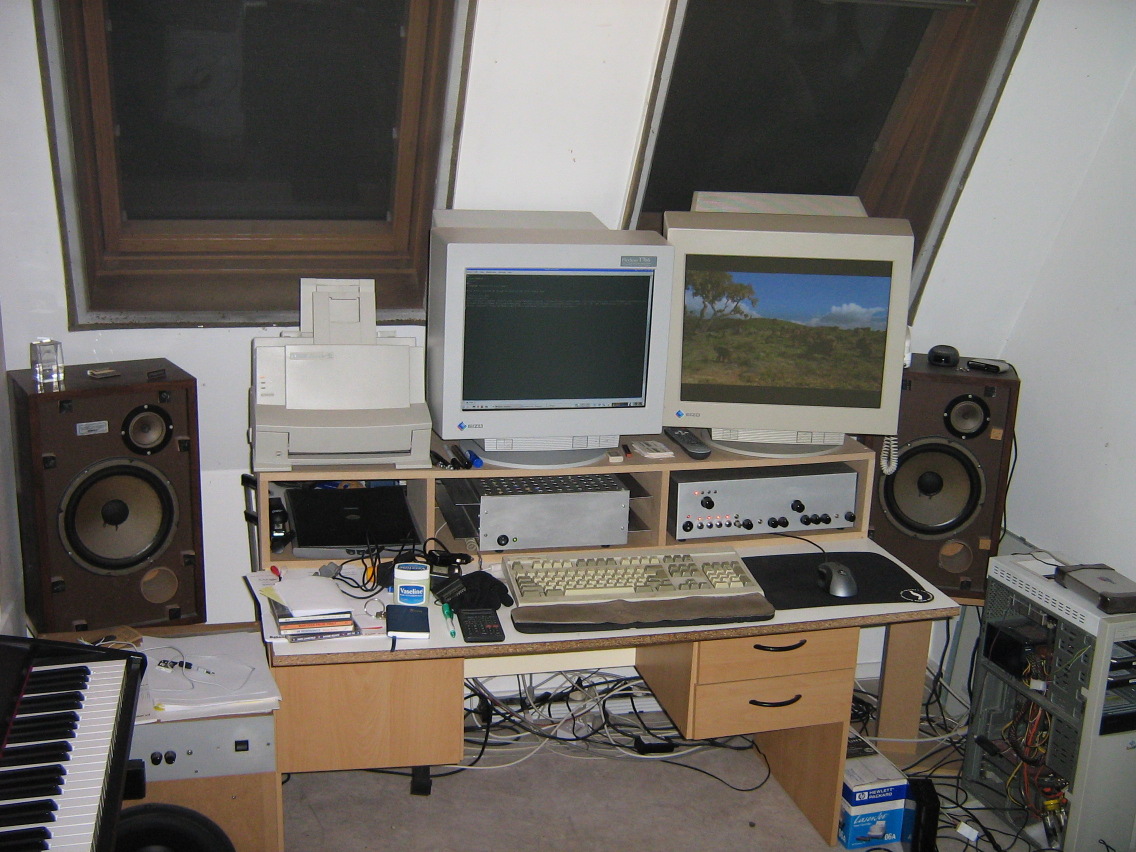
But, there are good sides to it, though. I was walking through a second-hand store the other day and saw and Eizo T961 21″ Flatscreen. Most people wouldn’t want such a thing because of its size, and that was probably the reason it was only 15 euros. I was curious as to its quality, so I bought it.

Aside from a few minor things and after recalibration (which these Eizo CRTs make possible through the on-screen menu), the image quality was very nice. In some respects even better than my own 19″ T766 (but granted, that one was better with it’s old picture tube, which was replaced when I had it repaired).

In any case, I now have a dual Eizo CRT setup, which cost me practically nothing.

Dual Eizo monitor setup

Dual Eizo monitor setup

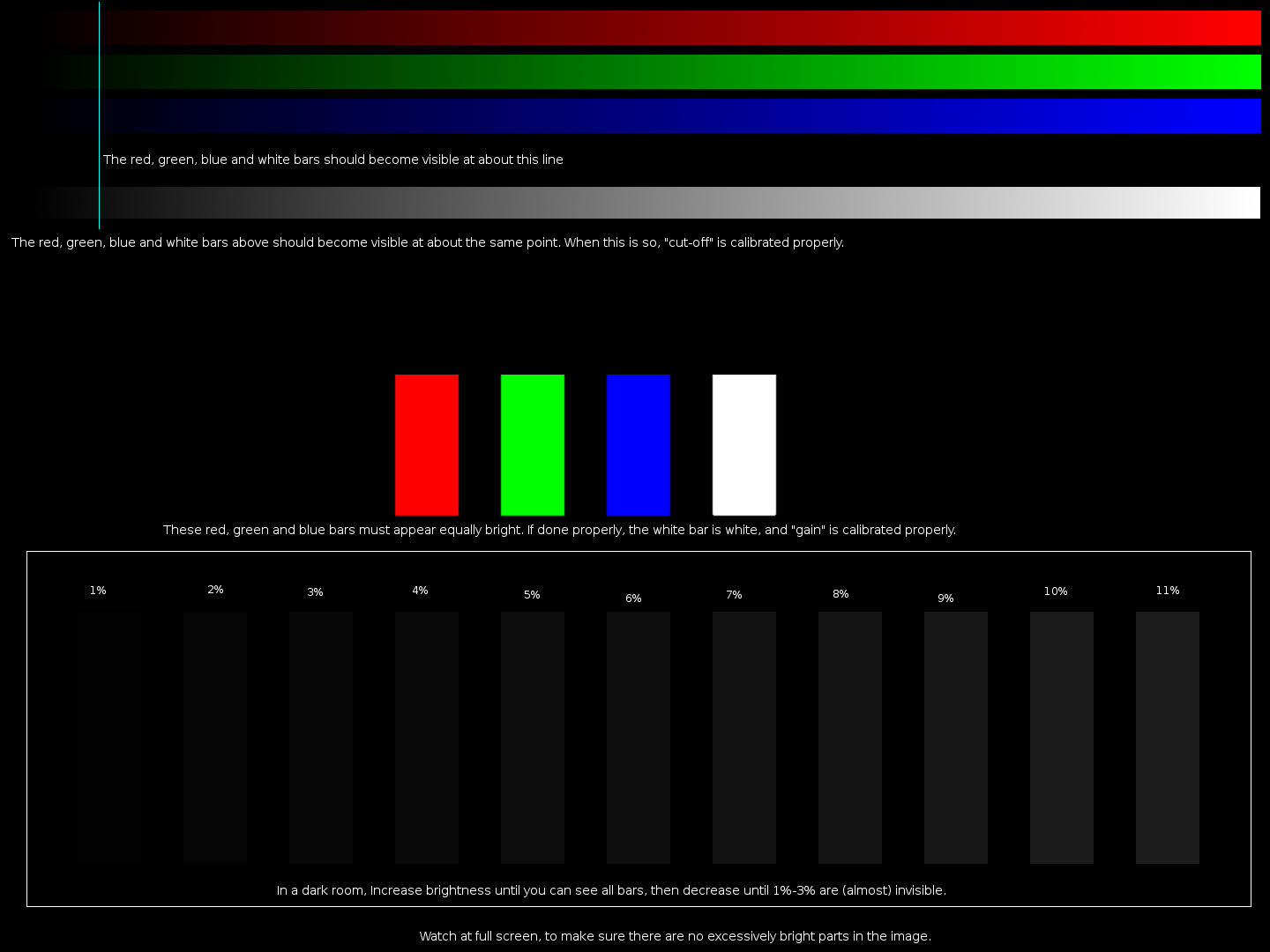
Edit: I use this image for calibration:

monitor-calibrate

Moving my traditional website content over to my blog

Cool URLs don’t change, but the relevance of my content does (and it’s declining). www.bigsmoke.us consists of content that has mostly never been updated. That’s why I want to move it over to my blog here.

I think one of the advantages of a blog is that it’s quite clear what gets published when. You can add this information to the pages of a good old fashioned static website, but it’s just not quite the same. One of the reasons is that, on my blog, my guideline is that posts are not edited anymore after hitting the “Publish” button.

Why blog posts shouldn’t change what they say

Once a post is published, it can be commented on below the post or from within elsewhere on the world wide web. If, after publication, a post changes significantly, it becomes very unclear what is being cited / commented on. Of course, simple formatting changes or grammar/spelling corrections are not considered significant changes, but changing the meaning of what is being said is.

(Because blog posts are so temporal it is habitual that if you do have to commit corrections which change the meaning of the text, you notify the readers of your post of this by adding an Update notification at the top or the bottom of your post. Examples of this are abound on the web. Here’s one example.)

GNU Screen within Screen within […]

GNU Screen is great. So great that I find myself always using it. (Pressing the Window key and T launches an XTerm with a new Screen ready on my system, while I have to add Shift if I don’t want the screen.) This means that when I login into a some other machine through SSH—an occasion for which Screen is particularly useful—I will often end up with nested screens. So which Screen will receive my Ctrl+a presses?

The answer (courtesy of Google and Yacin Nadji) is that Ctrl+a will target the outer screen. Each a that you add after that will go down one nesting level.

Not that I don’t still find controlling nested screen confusing, but now at least I don’t feel helpless and stuck whenever it happens. 😉

Extra tips

  1. Visible captions make it easier:

    GNU Screen within Screen with captions

    GNU Screen within Screen with captions

    (If you don’t know how to configure Screen with captions, I’ve blogged about his previously.)

  2. Debian Administration, a very high-quality site has an article about GNU Screen.

© 2026 BigSmoke

Theme by Anders NorenUp ↑