Smokes your problems, coughs fresh air.

Month: December 2008

Finding and deleting duplicate files

I needed to remove all duplicates In a collection of hundreds of thousands of files. I first came across this, which generates a script with commented out rm statements, but I quickly found another tool, fdupes, which made life a lot easier for me; I didn’t want manual control. I just wanted to have all the duplicates deleted, except one of them.

Fdupes has a feature to omit the first file in a set. So I made a simple script which found all duplicates, omit the first of the set, and put rm statements before the file names:

#!/bin/sh
OUTF='rm-dups.sh'
 
echo "#!/bin/sh" > $OUTF
fdupes -r -f . |sed -r 's/(.+)/rm \1/' >> $OUTF
chmod +x $OUTF

This script in turn generates another script, which can then be executed, but not before checking if it is actually correct, of course.

Images not showing after upgrade to MediaWiki 1.13

When I upgraded two of my MediaWiki installations[1, 2] a while ago, images were no longer being displayed. I found out that this was due to some problem with a change to the image.image_name column.

Gladly, the fix was easy (adopted from the message in the mailing list):

ALTER TABLE image ADD COLUMN img_name2 varchar(255); 
UPDATE image SET img_name2=img_name;
UPDATE image SET img_name=img_name2;
ALTER TABLE image DROP COLUMN img_name2;

My quest for the ultimate Bash prompt

On my new laptop (a Lenovo T61) I was still using the default Gentoo prompt in Bash. This was kind of a shame since my last Gentoo installation (on what is now my sister’s Ubuntu machine) had a beautifully customized prompt. It was time to dig up the old escape codes.

The old

To recover my old prompt I didn’t even need to go rummaging through old files. All I had to do was to find an old forum post on the Gentoo forums. But, I noticed immediately that I didn’t like this old prompt so much anymore. It had too much stuff and it didn’t have very strong root warning signals.

My old Bash prompt

My old Bash prompt

My old Bash prompt as root

My old Bash prompt as root

The new

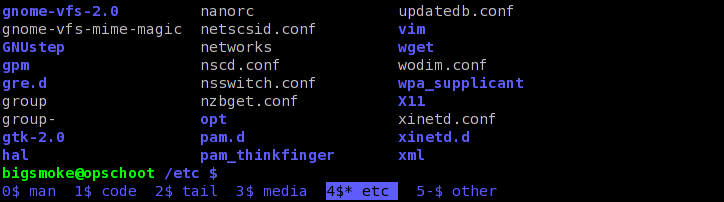
My new Bash prompt

My new Bash prompt

For my new prompt I used the PROMPT_COMMAND environment variable. The command in this environment variable is always run before the prompt is displayed. This means that, if you set the PS1 environment variable from this command, you can change your prompt depending on circumstances.

I pushed the dollar (or hash)-sign all the way to the left because I often type in very long commands. A little more space is used if there are background jobs, but only if there are background jobs.

My new Bash prompt with background jobs

My new Bash prompt with background jobs

You should never be root for too long, so I made being root very noticeable (and even slightly annoying):

My new Bash prompt as root (and with background jobs)

My new Bash prompt as root (and with background jobs)

The following is the code I use to create the prompt. Stick it wherever you want it (e.g. in your user’s bashrc or in the system-wide bashrc) and adjust it to look nice and play nice with the rest of your environment. The code isn’t pretty, but it does what it has to. 😉

prompt_command {
  XTERM_TITLE="\e]2;\u@\H:\w\a"
 
  BGJOBS_COLOR="\[\e[1;30m\]"
  BGJOBS=""
  [ "$(jobs | head -c1)" ]; BGJOBS=" $BGJOBS_COLOR(bg:\j)";
 
  DOLLAR_COLOR="\[\e[1;32m\]"
  [[ ${EUID} == 0 ]] ; DOLLAR_COLOR="\[\e[1;31m\]";
  DOLLAR="$DOLLAR_COLOR\\\$"
 
  USER_COLOR="\[\e[1;32m\]"
  [[ ${EUID} == 0 ]]; USER_COLOR="\[\e[41;1;32m\]";
 
  PS1="$XTERM_TITLE$USER_COLOR\u\[\e[1;32m\]@\H:\[\e[m\] \[\e[1;34m\]\w\[\e[m\]\n\
$DOLLAR$BGJOBS \[\e[m\]"
} PROMPT_COMMAND=prompt_command

More info

If you want to learn more about customizing your prompt, there’s an article up at IBM’s website. From it, I stole this nice color table:
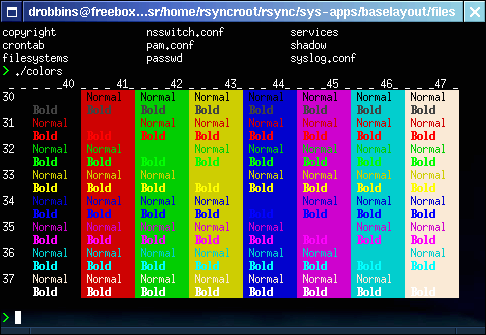
Console color codes table

Console color codes table

Another tip: you can type man console_codes for everything about … console codes.
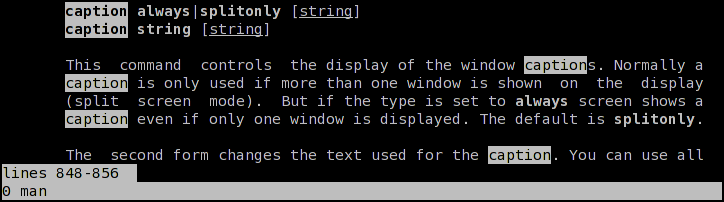
GNU Screen window captions as XTerm tabs

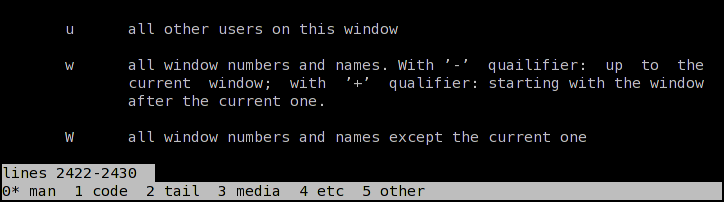
XTerm is my favorite terminal emulator and I love GNU Screen. So, imagine my joy when I found out that Screen can persistently show window captions ([Ctrl+A]: caption always).

GNU Sreen with default window captions (in XTerm)

Now I wouldn’t loose track of my windows so easily. No more detours through the Window-list, and it gets better; from the Screen manual, I learned that I could set the caption to a string. Look what [Ctrl+A]: caption '%w' does:

GNU Screen with simple window captions (in XTerm)

Cool! I could finally have my XTerm tabs. 🙂 Just recently, I was telling Wiebe—in reply to a complaint of him about getting lost in Screen’s window list—how cool it would be if you could have a terminal emulator display a tab for each screen window. Now I can tell him, instead, that tabs in a terminal emulator are a superfluous feature.

My current configuration

GNU Screen with window captions (in XTerm)

This last example is done with the following Screen command: caption always "%{= kB}%-Lw%{=s kB}%50>%n%f* %t %{-}%+Lw%<" There are more examples in the manual page. Enjoy your tabs!

© 2026 BigSmoke

Theme by Anders NorenUp ↑